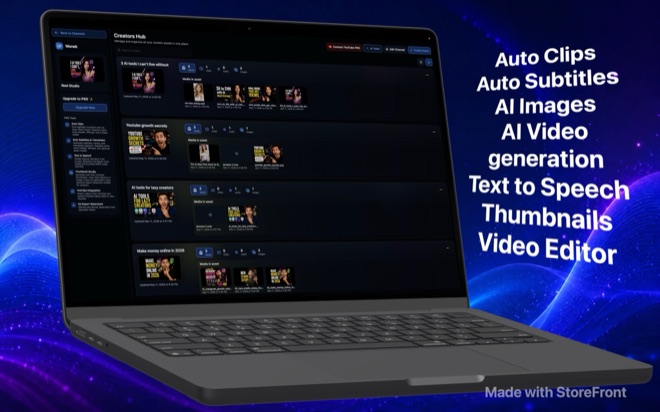
Cut Video Highlights on Mac with Local Whisper AI
Pulling five usable shorts from an hour-long podcast or screen recording usually means scrubbing the entire timeline twice. In Wonek Video Studio on Mac, Auto Clips transcribes your footage locally with Whisper and uses an on-device Qwen or Gemma model to propose highlight ranges you can trim before exporting. Neither your audio nor your transcript leaves your machine.
How local Whisper and language models find candidate clips
Cloud clipping tools require uploading multi-gigabyte camera files before you know whether a recording even contains a strong segment. Running the pipeline on an Apple silicon Mac skips the upload wait and keeps unreleased client sessions, lectures, and internal demos on local storage.
Auto Clips works in two distinct local stages after you download the models from Hugging Face inside the app. First, Whisper converts the spoken track into a timestamped transcript; second, a local Qwen or Gemma language model reads that transcript to locate self-contained arguments, stories, or demonstrations with a clear opening and payoff.
- Requires macOS 26, an Apple silicon Mac recommended for multi-gigabyte local models, and an active Pro plan (or the one-week free trial on monthly Pro).
- Processes single-speaker commentary, two-person podcasts, and narrated software walkthroughs directly from your channel assets.
- Hands every proposed cut back to the multi-track timeline so you can adjust boundaries rather than locking you into a rigid template.
Prepare your long recording for clean clip boundaries
Language models judge structure from words and sentence timing, which means messy audio produces vague clip starts. If your recording has loud HVAC hum or laptop fan whine competing with speech, run Wonek’s bundled DeepFilterNet noise removal on the audio lane first so Whisper timestamps word starts accurately.
Before triggering Auto Clips, organize the source file inside a dedicated workspace channel and drop timeline markers on any visual demo moments that have little spoken explanation. A silent ten-second UI reveal rarely registers in a transcript alone, so combining markers with AI candidates gives you complete coverage.
Run Auto Clips and refine cuts on the timeline
Treat AI-selected ranges as a rough assembly rather than a finished master. A local model is good at spotting where a topic begins, yet human editors still make better decisions about reaction beats, breath pauses, and visual framing.
Follow a repeatable pass from import to timeline trim so one recording reliably yields a week of short-form cuts.
- Import your long-form MOV or MP4 into a channel in Wonek Video Studio and open the asset in the main editor.
- Open Auto Clips from the editor toolbar, confirm your local Whisper and Qwen or Gemma models are installed, and run transcription and highlight detection.
- Audition each suggested highlight with J-K-L shuttle playback, rejecting tangents that rely on earlier context the short viewer will not have.
- Switch to ripple or roll trim on the timeline to tighten dead air at the head and tail, and apply auto-reframe when converting 16:9 camera footage to a 9:16 vertical canvas.
Check hook pacing and visual context before export
Watch the first three seconds of every surviving clip from a cold start. Speakers in hour-long recordings often warm up with transitional phrases like "going back to what we said earlier," which signal to short-form viewers that they walked into the middle of a conversation. Razor that preamble out so the clip opens on the core claim or question.
Verify the ending just as carefully. Let the final spoken word land for half a second before the cut instead of clipping the last consonant, then move directly to Auto Subtitles and export in H.264 or HEVC for your target platform.
Does Auto Clips upload my raw recording to a cloud server?
No. Whisper transcription and Qwen or Gemma highlight detection run locally on your Mac using models downloaded from Hugging Face. Your media only leaves the Mac if you explicitly send prompts to an AI video/image API or upload a finished cut to YouTube.
Do I need an OpenAI or Google API key to use Auto Clips?
No API key is required for Auto Clips. External provider keys under File → Model Keys are only used when generating AI video or images; local transcription and highlight detection are unlocked by the Pro subscription.
Can I edit the clips after Auto Clips selects them?
Yes. Every highlight opens in the full multi-track timeline where you can ripple-trim pauses, insert B-roll lanes, apply chroma key or stabilisation, and reframe for vertical 9:16 output.