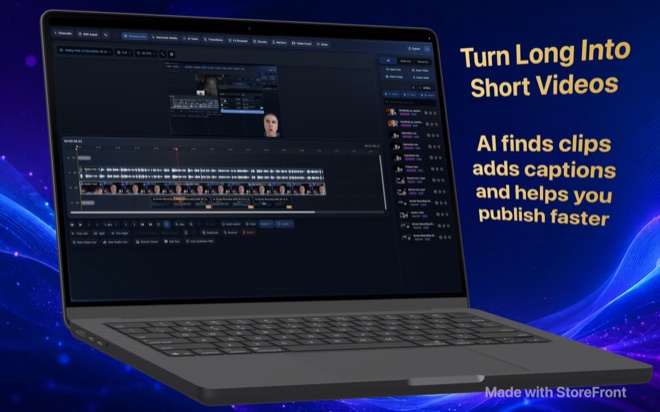
Multi-Track Video Editing on Mac: Trim and Proxies
Template-only short-form apps fall apart the moment you need three B-roll lanes, a keyed screen overlay, and frame-accurate dialogue trims. Wonek Video Studio builds its AI tools around a true Mac multi-track timeline featuring unlimited video and audio lanes, J-K-L shuttle transport, five dedicated edit modes, and proxy media for heavy 4K files.
Cut faster with the trimmer, J-K-L shuttle, and three-point edits
Dragging full camera files straight onto a busy timeline and slicing with a mouse forces constant zooming in and out. Using Wonek’s dedicated trimmer with J-K-L keyboard transport lets you reverse, pause, and fast-shuttle through raw takes at double speed until you hear the exact take that worked.
Mark In and Out points in the trimmer and drop clean three-point edits onto your target track. Combined with timeline markers, regions, snapping, full undo history, and continuous autosave, you can assemble a ten-minute talking-head spine in minutes before touching visual effects.
When to use ripple, roll, slip, and slide edit modes
Wonek provides five edit modes from standard selection through ripple trim so multi-lane cuts stay in sync without manual gap-closing. Knowing which trim mode solves which timing problem prevents accidental audio drift downstream.
Match your edit mode to what needs to move on the timeline.
- Ripple edit: trims a clip boundary and shifts all subsequent timeline events earlier or later automatically—ideal for cutting dead air from a monologue spine.
- Roll edit: moves the cut point between two adjacent clips without changing total sequence duration, refining exactly when a reaction shot takes over.
- Slip edit: shifts a clip’s internal In and Out points while keeping its position and length on the track fixed—perfect for choosing a better two-second action inside B-roll.
- Slide edit: moves a clip earlier or later between two neighbours by trimming their inner edges while preserving total timeline runtime.
Generate proxy media when 4K HEVC footage stutters
High-bitrate 4K 50fps screen captures, multicam streams, and stacked effects—such as chroma key with spill suppression, masks, optical stabilisation, transitions, and auto-reframe—can tax any Mac when scrubbing backwards with the J key.
Turn on proxy media for heavy source files so Wonek builds lightweight editing copies on local storage. Follow a clean proxy routine so timeline playback stays fluid and final renders stay crisp.
- Import heavy 4K camera or screen recordings into your workspace channel and enable proxy generation before stacking multi-lane effects.
- Cut, shuttle, keyframe pan-and-crop moves, and align transitions at full frame rate against the lightweight proxies.
- Stack heavy effects deliberately by scope—media, event, track, or project—keeping stabilisation and chroma key on only the clips that require them.
- Export your finished sequence; the renderer automatically reads original full-resolution camera masters rather than proxy files.
Organise channels so recurring shows stay reusable
Creators who publish several times a week lose hours hunting through Downloads folders for intro stingers, lower-third masks, and brand LUTs or gradients. In Wonek, channels hold your recurring assets while projects open directly in the editor.
Keep one workspace channel per YouTube show or client so your media bin, voice presets, subtitle styles, and timeline sequences stay grouped on your Mac with zero cloud sync overhead.
Does Wonek Video Studio limit the number of video or audio tracks?
No. The timeline supports video and audio lanes without a fixed track cap, even in the free version of the Mac app.
Do proxy files lower the quality of my final exported video?
No. Proxies are used strictly to accelerate timeline scrubbing and preview playback while editing; final exports render from your full-resolution source files.
Which timeline features are free versus Pro?
The entire multi-track timeline—including ripple/roll/slip/slide modes, proxies, masks, chroma key, stabilisation, transitions, auto-reframe, and DeepFilterNet—is free with a moving watermark on video exports. Pro removes the watermark and unlocks Auto Clips, Auto Subtitles, Voice Studio, Thumbnail Studio, Bulk Video, and YouTube upload.